Conversions
The Conversions report shows the progress and results of conversions from other systems. Admins can start new conversions here, cancel them, re-run them. etc.
This report is only available to Admin users and is only supported on cloud hosted systems - not premise systems.
At this time, FileBound is the only built-in conversion supported.
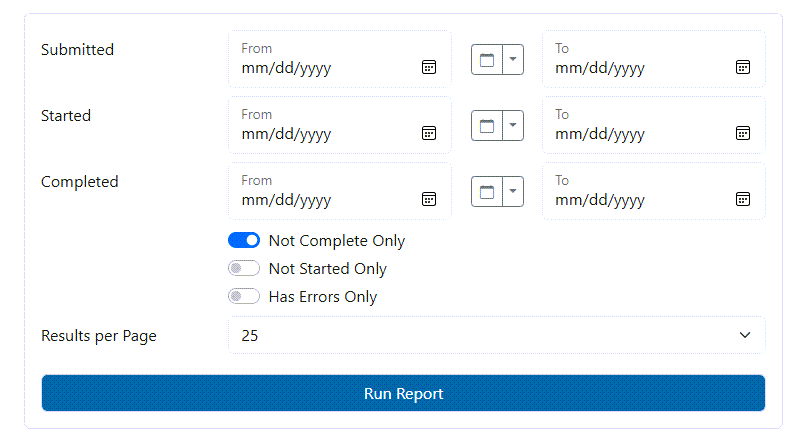
Example Output

The columns from left to right:
Type / Content - The type of system converting FROM and the data that was converted or is being converted
Submitted / Started - Date/Time that the conversion job was submitted to the queue and then was started
Completed - Date/Time that the conversion job was completed
Recs - Number of Records converted
Docs - Number of Documents converted
Status - Status is the current status of the conversion
Progress - The current progress of the conversion.
Action Buttons:
View Log - Only shown once the conversion is completed. Allows you to view the conversion log.
Restart - Only shown once the conversion is completed. Allows you to re-run that same conversion. NOTE: This option will allow your current import to continue where it left off. If you had set it to a Max Files of 10 then it will convert the next ten every time you restart. If you want to start over completely from the first file, start a new conversion.
Cancel - Only shown when the conversion is not completed. Allows you to cancel the conversion at its current state.
Refresh - Only shown when the conversion is not completed. Refresh the status of the conversion. The status will automatically refresh every 5 second without using this button.
New Conversion
The New Conversion button allows you to add a new Conversion into the queue. You can add several at one time and monitor their progress in this report.
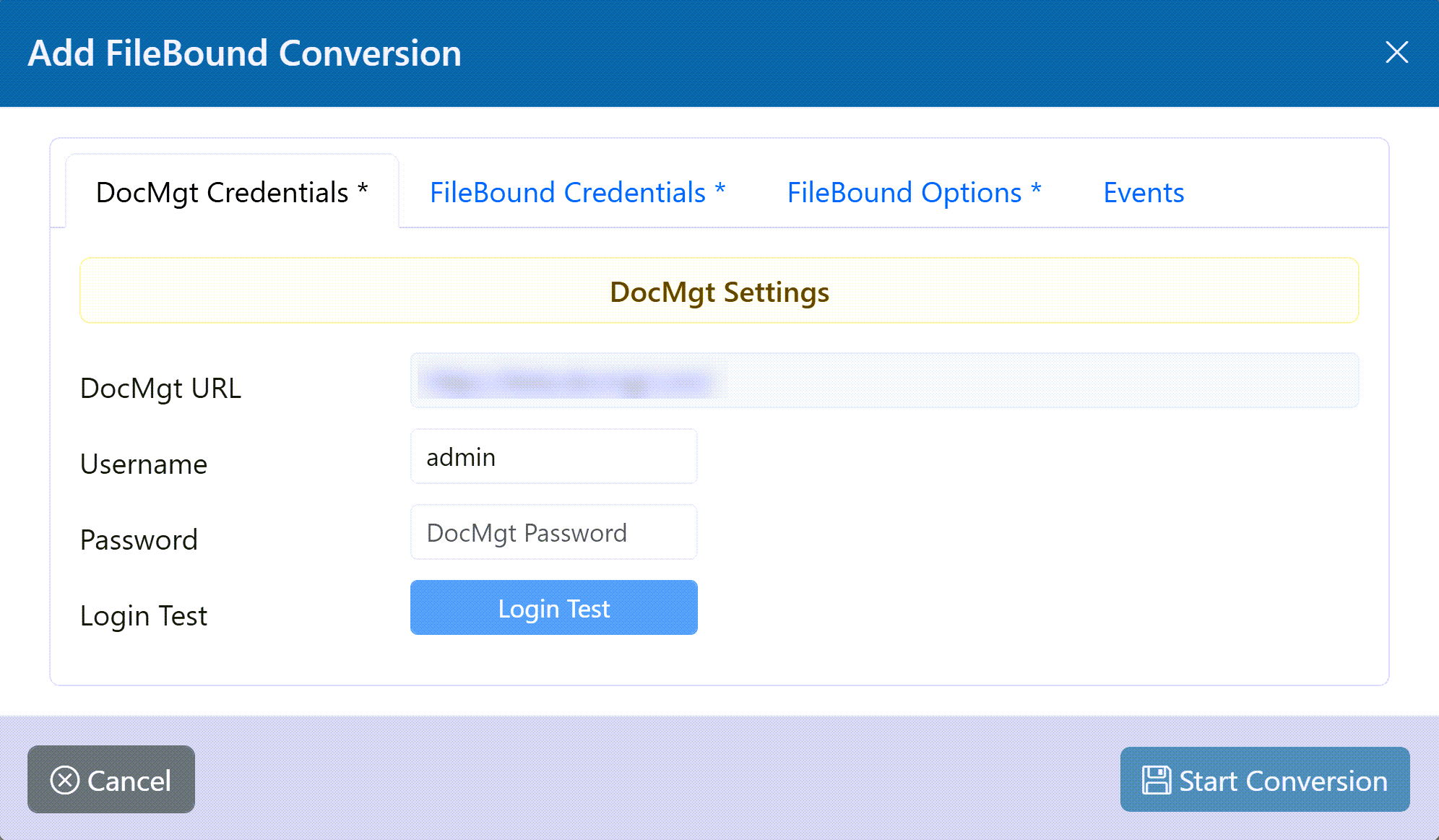
DocMgt Credentials
Enter the DocMgt credentials to use for the conversion. The conversion happens from another system to your current session is not used. The conversion has to log in again using these credentials. It is normally advised to use a separate set of credentials just for conversions. That way it is easier to trace conversion issues.
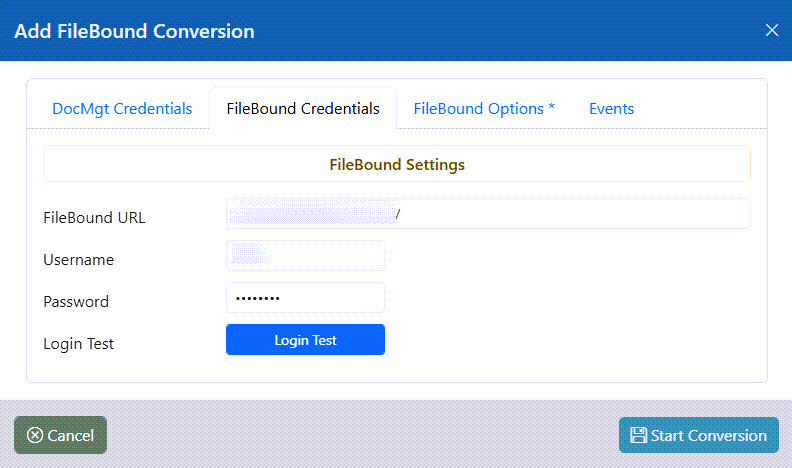
FileBound Credentials
Enter the FileBound credentials to use for the conversion. This includes the URL, Username and Password to log into the Filebound site. This user must have access to the Project(s) that you wish to convert.
FileBound Options
You can opt to convert Projects or Groups/Users. If you need to convert both, add 2 conversions - 1 for each. You can multi-select as many projects as needed. Each project will be converted in its own conversion process. So, if you add 3 projects to convert, you will see 3 conversion entries in the report. The Max Files option allows you to test your conversions by processing a few Files at a time. You can run a small sample, check the results and be sure all is working well. Once you are OK with the results, set this value to 0 to convert ALL files.
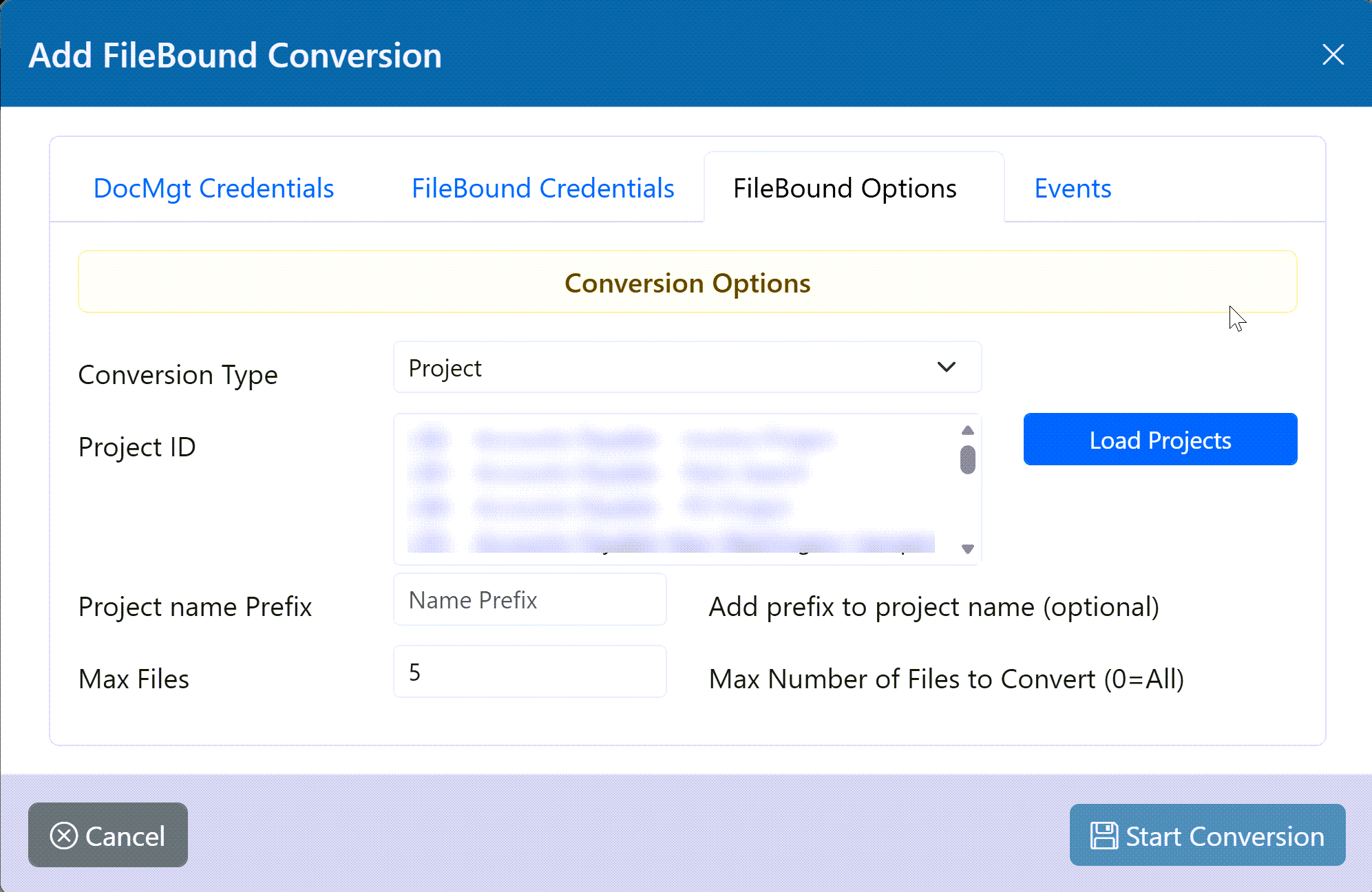
Conversion Type - You can select to convert Groups / Users or Projects. If you need to do both then you can add 2 conversions - 1 for each.
Project - You can select 1 or more Projects to convert. For each selected project, the system will add a separate conversion entry.
Project Name Prefix - You can add a prefix to the name of a project so the conversion adds the Record Types with those prefixes in place.
Max Files - The maximum number of files to convert for this conversion. This is useful to do sample conversions and to test your conversions before doing a full conversion. Setting this to 0 will convert all files from the selected project(s).
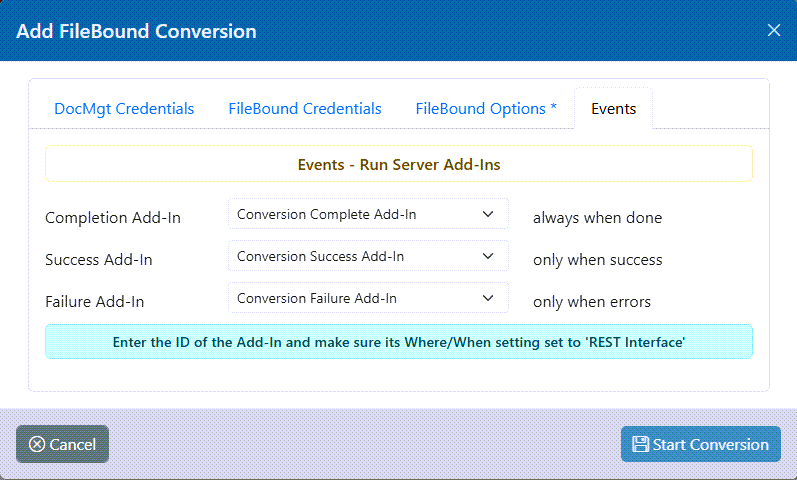
Events
You can run DocMgt events after teh conversion via REST Add-Ins. REST Add-Ins are just Add-Ins in DocMgt that have their Where/When setting set to inlude REST. The conversion can call those Add-Ins at the completion of the conversion. Completion Add-In runs at the end of the conversion regardless of whether it was successful or it failed. Suiccess Add-In runs at the end of the conversion but ONLY when it was successful. Failure Add-In runs at the end of the conversion but ONLY when it failed.
NOTE: The conversion logs are stored in a hidden Record in DocMgt. When the Add-Ins run, they will have the logging Record as their active Record. The log for this conversion run will also be set to the active Document. So, you do have the ability to email the log files, etc. Be careful though because the logs could grow to a size larger than is allowed to be sent via email.