Workflow Monitor
The Workflow Monitor is a live view of everything the workflow engine does for one user. Open the user in Administration > Users, expand the Workflow Monitor section and click Start. From then on, every workflow step DocMgt runs for that user is written to a log you can watch as it happens. It is the quickest way to find out why a route did not fire, why a button did not appear, or which action in an Action Set is taking the time.
The section appears only when your own account is a Reporting User. If you do not see it, you need to turn on Reporting User on your user.
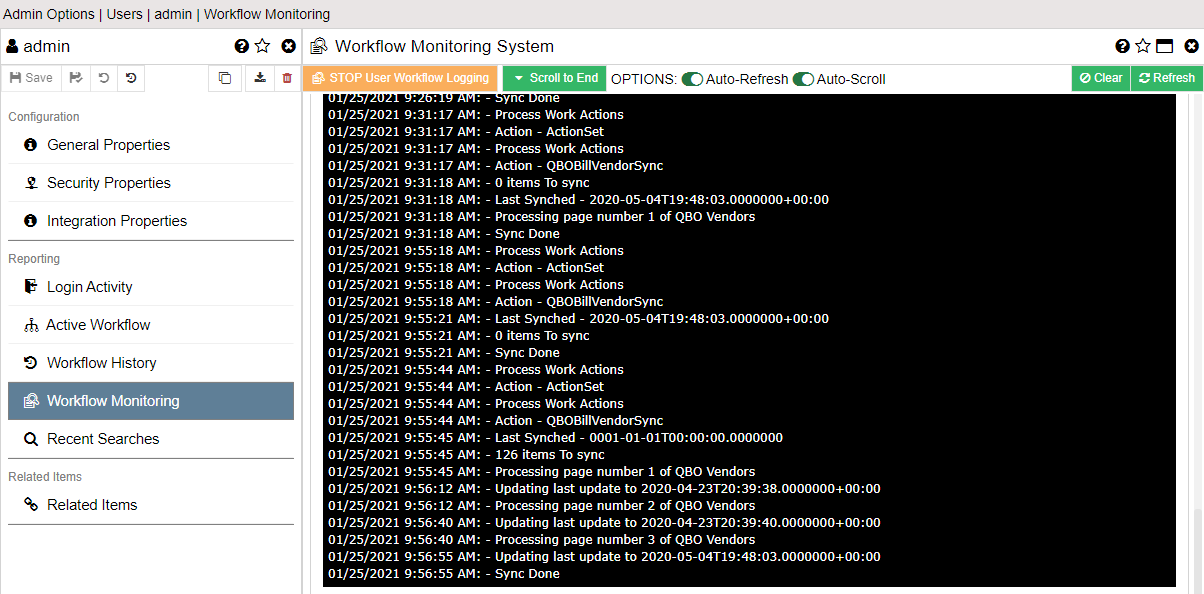
What gets recorded
While the monitor is running, the log shows the workflow engine's own commentary as it works for the user, one line per step, each line stamped with the date and time. You will see things such as:
- Which Process and Work Trigger matched a record, and which ones were checked and did not.
- Each filter check: button filters, child trigger filters and the parent process match.
- Every action that was triggered, and when it completed and how long it took.
- Who the work item was assigned to, and who was picked for email or SMS alerts.
- Document saves, E-form creation, merges and any errors the engine ran into along the way.
Only work the engine performs on behalf of the monitored user is recorded: workflow started by their button clicks, routes and saves, and Add-Ins they run. Work done by other users is not in this user's log.
When an E-form loads for the monitored user, the log also records each record search the form ran, with the field that asked for it and how long it took. Each form load starts with a summary line that names its slowest searches, so this is the place to look when a form is slow to open.
Workflow that runs for someone who is not signed in, such as a public form, runs under the docMgt_Agent user, so start the monitor on that user to watch it.
Starting and stopping
Click Start to begin. Starting clears any log already saved for the user, so DocMgt asks you to confirm first; use View Log or Download Log beforehand if you want to keep the earlier entries. The monitor then stays on for 24 hours and turns itself off, or you can click Stop at any time. Stopping does not remove what has been recorded.
The log is meant for troubleshooting, not for long-term record keeping. It is cleared every night by the Retention job, so download anything you want to keep the same day.
Reading the window
The log appears in the black window below the toolbar, newest lines at the bottom, ending with the marker -- END --. While the monitor is running the window refreshes on its own about every ten seconds. The controls are:
- Refresh fetches any new lines right away.
- Reset reloads the whole saved log into the window from the beginning.
- Clear empties the window only. Nothing is deleted, and new lines keep arriving from where you left off.
- Scroll keeps the window scrolled to the newest line as entries arrive. Turn it off to hold your place while you read.
- Refresh (the switch) turns the automatic refresh on or off. With it off, use the Refresh button when you want more.
When the monitor is not running, the toolbar offers View Log instead, which loads whatever has been saved for the user since the last Start.
Downloading the log
Download Log saves the user's complete saved log as a text file named after the user, in the same one-line-per-entry format as the window. It works whether the monitor is running or not, and it always includes the whole saved log, not just the part shown in the window. If nothing has been saved for the user, DocMgt tells you so.
Tips
- Start the monitor, reproduce the problem as the user (or have them do it), then read the log from the point where their action begins. Lines are timestamped, so note the time you started.
- Looking for a route that did not fire? Find the Work Trigger's name in the log and read the filter checks just below it.
- Looking for slowness? Each completed action shows its time in milliseconds, and each E-form load's summary line names its slowest record searches.