Viewer / UI Settings
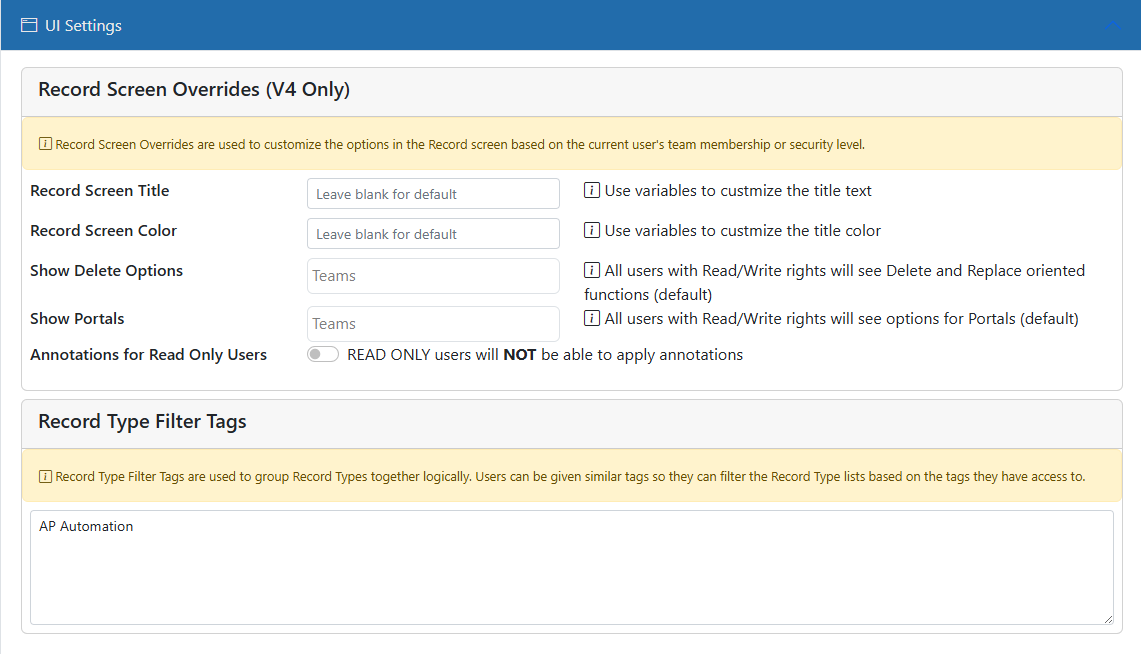
Use this section to override certain aspects of the UI.
Record Screen Title
Normally the Record Screen shows the Record Type of the Record. You can use this setting to change that to whatever you need. This supports variables so you can use values from the Record to show specific information. The example above shows how to customize the title based on if the Record has required documents missing.
Record Screen Color
The color of the title is normally black. You can use this setting to change that to whatever color you want. This supports variables so you can use valoues from the Record to determine the color. The value here must be a named color (red, black, blue, etc.) or a valid hex color code as defined by HTML. The example above shows how to customize the title color based on if the Record has required documents missing.
Show Delete Options
Normally when users have Read/Write access, they can add, edit and delete documents. If you select 1 or more teams in this setting then only those teams will see the delete functions. This is NOT a security setting - just a UI setting.
Show Portals
Normally if Collaboration Portals are enabled, any user can see and manage those portals. If you select 1 or more teams in this setting then only those teams will see and can therefore manage the portals. This is NOT a security setting - just a UI setting.
Show Document Notes
Normally the Document Notes button is shown for users to be able to make and read document-specific notes. This setting allows you to turns OFF that option so the button does not show up. This prevents Document Notes from being used in this Record Type.
Word Click
You can link word clicks in the viewer to Add-In or E-form actions. This only works on OCR'd documents and requires the user to show the OCR Word on the page. That will highlight the words in the viewable page so they can click on them. Normally, clicking the word will bring up a screen that shows the word and its coordinates on the page. If you select and Add-In or E-form in this section, the user will instead run and Add-In or E-form. The user can also draw a rubber band around multiple words.
Add-In
If you select an Add-In, then the Add-In will be run with the clicked words sent into the add-in as a data value named "ClickValue" and "ClickLines". You can use [ClickValue] or [ClckLines] in your Add-In to refer to that value and use it as needed. "ClickWords" is a single-line string of the words clicked with spaces between. "ClickLines" is a multi-line list of the words clicked with spaces between and lines added between the lines (if any) that were rubber banded.
E-Form
If you select an E-form, then the E-form will be launched with the clicked word sent into the form as a data value named "ClickValue" and "ClickLines". "ClickWords" is a single-line string of the words clicked with spaces between. "ClickLines" is a multi-line list of the words clicked with spaces between and lines added between the lines (if any) that were rubber banded. In order to use these in your form, you will need to have fields in the form with the names "ClickValue" and/or "ClickLines" so the form can receive the values. You can then use that value in your form for any purpose. NOTE: If the E-form you selected is also in the Record Screen Panel Overrides list, then that E-form will be launched in the defined panel instead of the default "full screen" location.
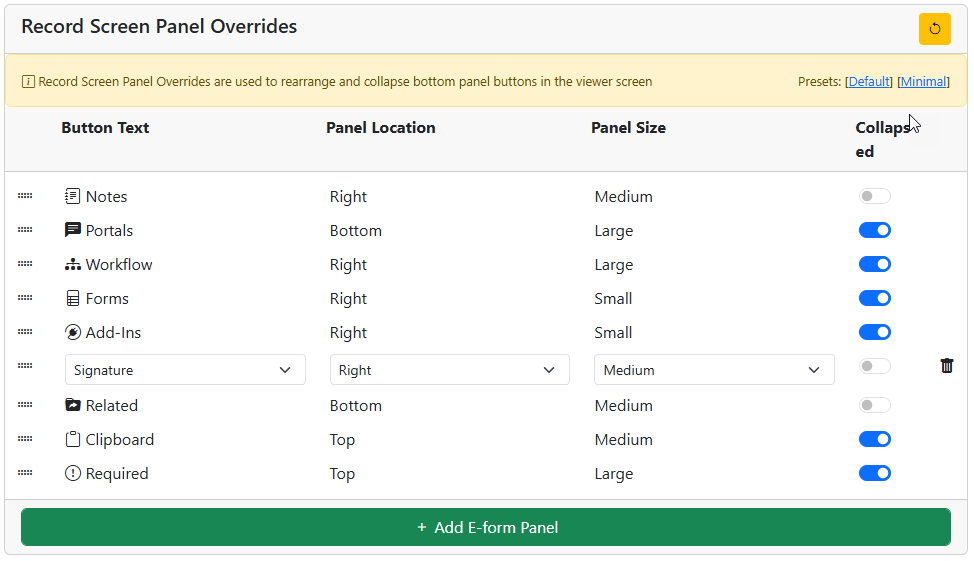
Record Screen Panel Overrides
With these settings you can rearrange and collapse the bottom left panels of the viewer screen. Collapsed buttons will appear in a pop-up menu as the last button.
You can also add your own E-forms as buttons in the list or collapsed. When you do this you can also select which side of the screen the E-form will be embedded and the size of the E-form display panel.
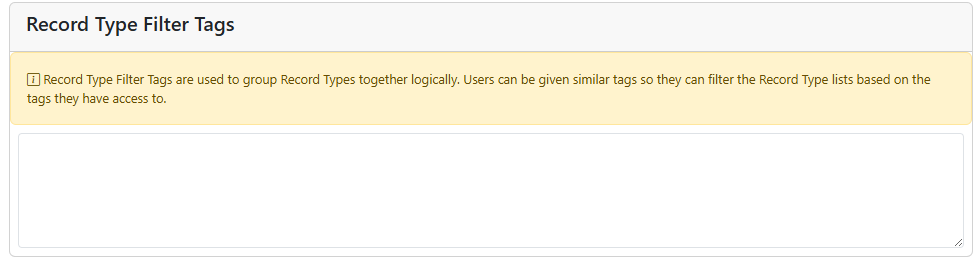
Record Filter Tags
This is a way to tag Record Types with common values. If a user has access to any Record Types with these filters and the user's settings match these filters, they will have an extra option in the toolbar to select the filter by name. When they do then the toolbar changes to reflect only those Record Types that have that same filter tag. This is great for training, demos, and more.